Synastry
About this chapter
This chapter covers the double wheel — two charts viewed together. There are three kinds: synastry, composite, and Davison.
For the astrological thinking behind synastry, see also Synastry on the ARI official site (in Japanese).
Choosing the chart type
Steps
- Open Synastry from the menu.
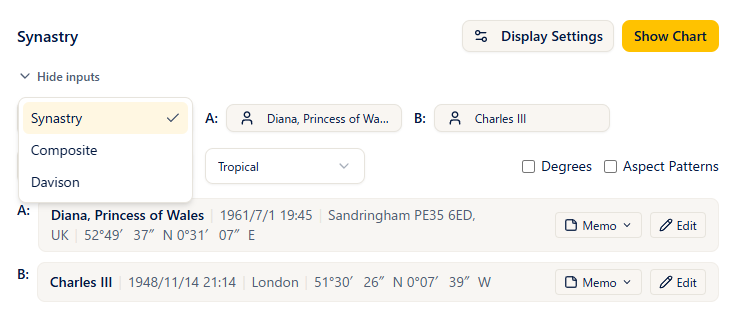
- Choose Synastry, Composite, or Davison from the type selector at the top left.
- Switching the type recalculates automatically using the data you have already entered.
Notes
- Synastry: shows two natal charts together, one on the inner ring and one on the outer ring.
- Composite: a combined chart built from the midpoints of the two charts (shown as a single circle).
- Davison: a chart built from the average of the two birth dates, times, and places (shown as a single circle). The Mean Datetime and Mean Location are shown below the chart.
- Types your plan does not include are marked with a lock icon and cannot be selected.
Plans
Synastry = free and above / Composite = Pro and above / Davison = Max and above.
Creating a double wheel
Steps
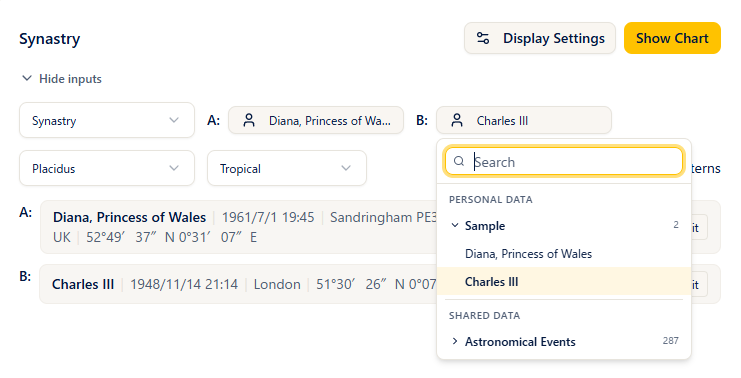
- In the input fields, choose a saved birth data record from the A (inner ring) picker and another from the B (outer ring) picker.
- To correct data on the spot, edit the values directly in each person's birth data form (press Show Chart to apply your edits).
- Choose a house system if you need to.
- Press Show Chart and the double wheel appears.
Notes
- If you leave one of the pickers empty, that slot is filled with "the current time at your default observation location". You can use this to overlay a transit chart on a natal chart and read the influence of the transits.
- Once the calculation succeeds, the input fields collapse automatically. Show inputs opens them again.
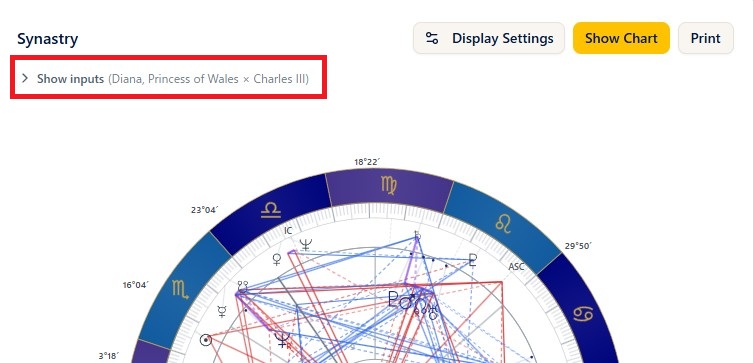
- In synastry, A is the inner ring and B the outer ring. Composite and Davison are shown as a single circle.
Overlaying a new or full moon chart on the natal chart
Steps
- Leave the chart type as Synastry and choose the birth data for A (inner ring).
- In the B (outer ring) picker, choose the new or full moon you want to overlay from the astronomical events under Shared Data.
- Press Show Chart and the double wheel appears with the new (or full) moon chart over the natal chart.
Notes
- You can read the influence of the new or full moon on the natal chart through the cross aspects.
- You do not have to register the astronomical events yourself. For details see "Shared data" in the Clients chapter.
Reading the right panel
For synastry
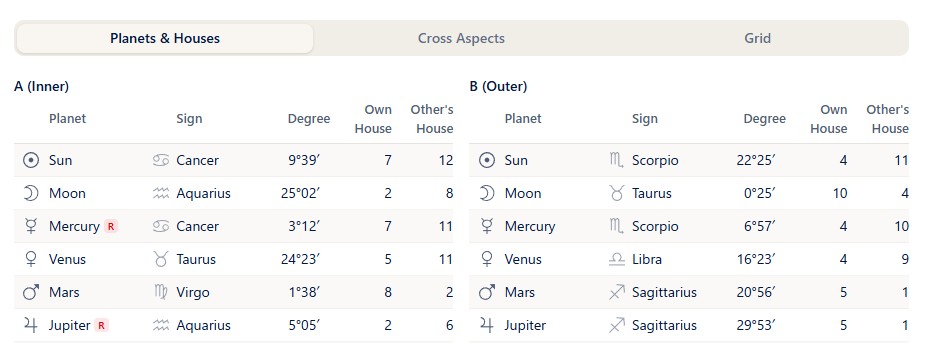
- Planets & Houses tab: the list of planets for A and for B. Own House is the house in that person's own chart and Other's House is the house the planet falls into in the other person's chart (the headings read "A (Inner)" and "B (Outer)").
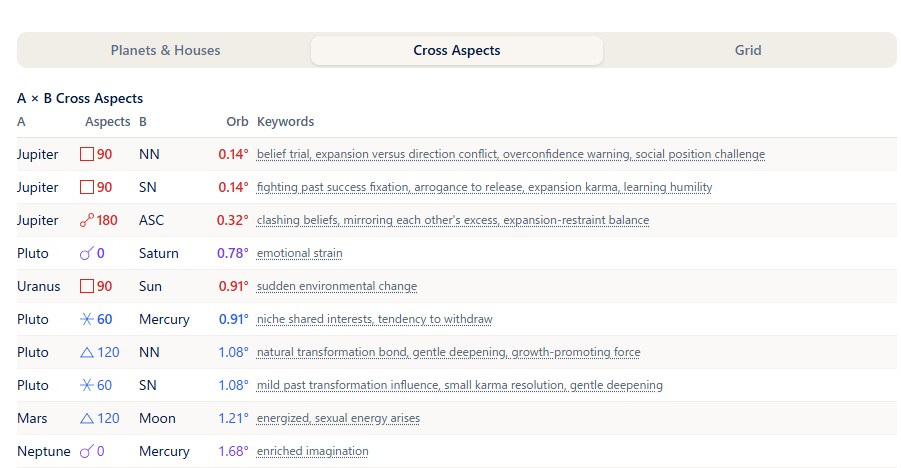
- Cross Aspects tab: shows planets, aspects, orbs, and keywords in three sections — A × B Cross Aspects, A Natal, and B Natal. The keyword column shows up to the first four; when there are more, clicking (tapping) opens the full text in a pop-up (orbs within one degree are shown in bold).
- Grid tab: shows the A × B cross grid (with the compatibility colors described in the next section) plus the natal grid for A and for B. The cross grid is oriented A down, B across.
For composite and Davison
- These are shown with four tabs — Planets / Houses / Aspects / Analysis — the same arrangement as the single wheel. See "The chart display and the panels" in the Natal chapter for the Planets, Houses, and Aspects tabs, and the Analysis Tab chapter for each item on the Analysis tab.
Compatibility colors (the coloring of the cross grid)
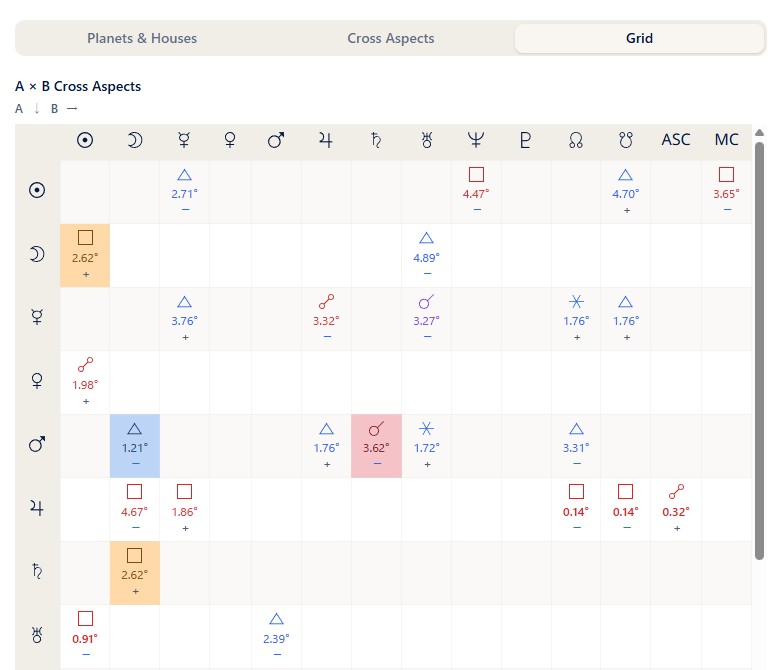
On the Grid tab for synastry, the harmonious aspects and tension aspects that matter most when looking at compatibility are colored in three colors, based on ARI's own interpretation (aspects within an orb of 5 degrees). It makes compatibility easy to read at a glance.
- Red: strong tension aspects
- Orange: challenging aspects
- Blue: harmonious aspects
This compatibility color legend is shown below the grid.
Before you use it
This coloring is one view, based on ARI's own interpretation. When you interpret a chart, your own thinking and judgment come first.
Aspects and aspect patterns
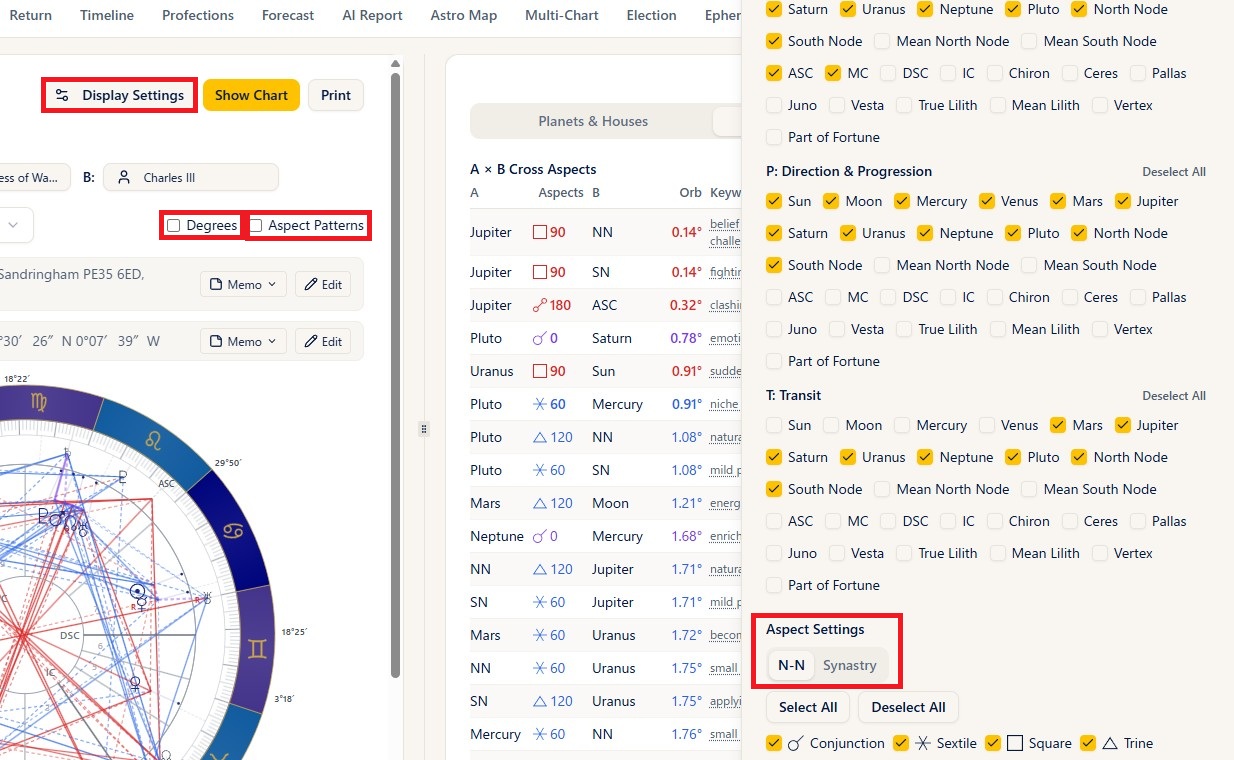
Notes
- The wheel is drawn with the A × B cross aspect lines plus the lines among A's own planets and among B's own planets (following the on/off setting and the orbs; wide orbs are drawn as dotted lines).
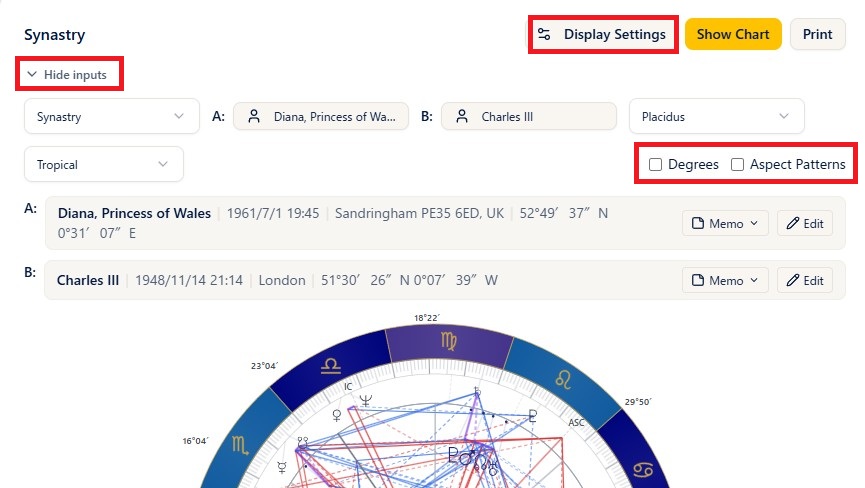
- Ticking Degrees shows the degree next to each planet on the wheel.
- The aspect types, orbs, and colors used for the synastry cross aspects come from the Synastry tab of the aspect settings in Settings (or the Display Settings panel). Composite and Davison are treated as a single natal chart, so they use the N-N tab.
- The Moon of a person whose birth time is unknown is excluded from the cross aspects. The Moon is calculated as of 12:00 (noon), but even so the actual birth time can shift it by 6-7 degrees. (The ASC and MC of a person whose time is unknown are excluded in the same way.)
- Aspect patterns: turning on the Aspect Patterns checkbox calculates and displays the combined A + B patterns (Basic plan and above; the calculation takes a little time, so turn it on only when you need it).
- Clicking a planet pops up the list of aspects to it, including whether each is applying or separating (badges are red for the inner ring A and blue for the outer ring B). Angles such as the ASC and MC can be clicked too.
- For the basics of aspects, see also Aspects on the ARI official site (in Japanese).
Display and printing
Steps
- Ticking Degrees shows the degree of each planet on the wheel.
- The Print button prints the chart and the data (Basic plan and above).
- Clicking the wheel enlarges it, and from the enlarged view you can save the image with PNG (PNG saving is Basic plan and above).
Notes
- The Display Settings button lets you adjust the planets and aspects shown on the spot (Plus plan and above).
- Show asteroids and points is a simple toggle for free and guest users (on Basic and above these are managed on the settings screen).
- Degree notation (decimal or degrees-minutes) follows the degree mode in the settings.