Forecast
About this chapter
This chapter covers the Forecast. The forecast extracts things such as the periods when an aspect forms within a range you specify. The screen has three tabs: Event Calculation / Time Map / Graphic Ephemeris. The forecast is available on the Plus plan and above (Graphic Ephemeris = Pro and above, Time Map = Max).
Event presets (the quick way)
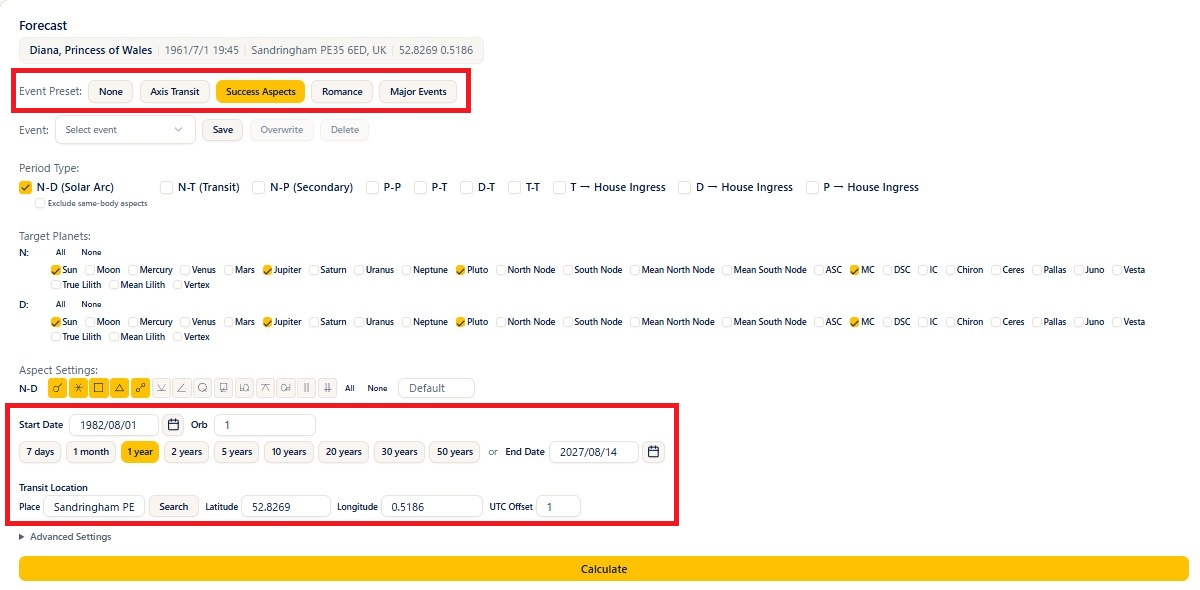
Steps
- Choose the birth data you want to forecast in the birth data picker in the header.
- Open Forecast from the menu.
- Choose Axis Transit, Success Aspects, Romance, or Major Events from Event Preset (the calculation conditions are set automatically).
- Enter the Start Date.
- Specify the period (with the 7 days / 1 month / 1 year to 50 years buttons, or freely with an End Date).
- Press Calculate and the matching periods are listed.
Notes
- Axis Transit: narrows to the periods involving the ASC and MC.
- Success Aspects: targets the Sun, Jupiter, Pluto, and MC.
- Romance: narrows to the periods involving Venus.
- Major Events: targets the major bodies, and the result rows are color-coded. Colored rows contain the bodies most likely to manifest, with red leaning hard and blue leaning soft. Accurate interpretation still requires reading the individual natal chart.
- Choosing None clears the preset.
- The bodies used by the presets are not greatly affected by the transit location, so leaving it at the birth place is fine.
Specifying detailed conditions yourself
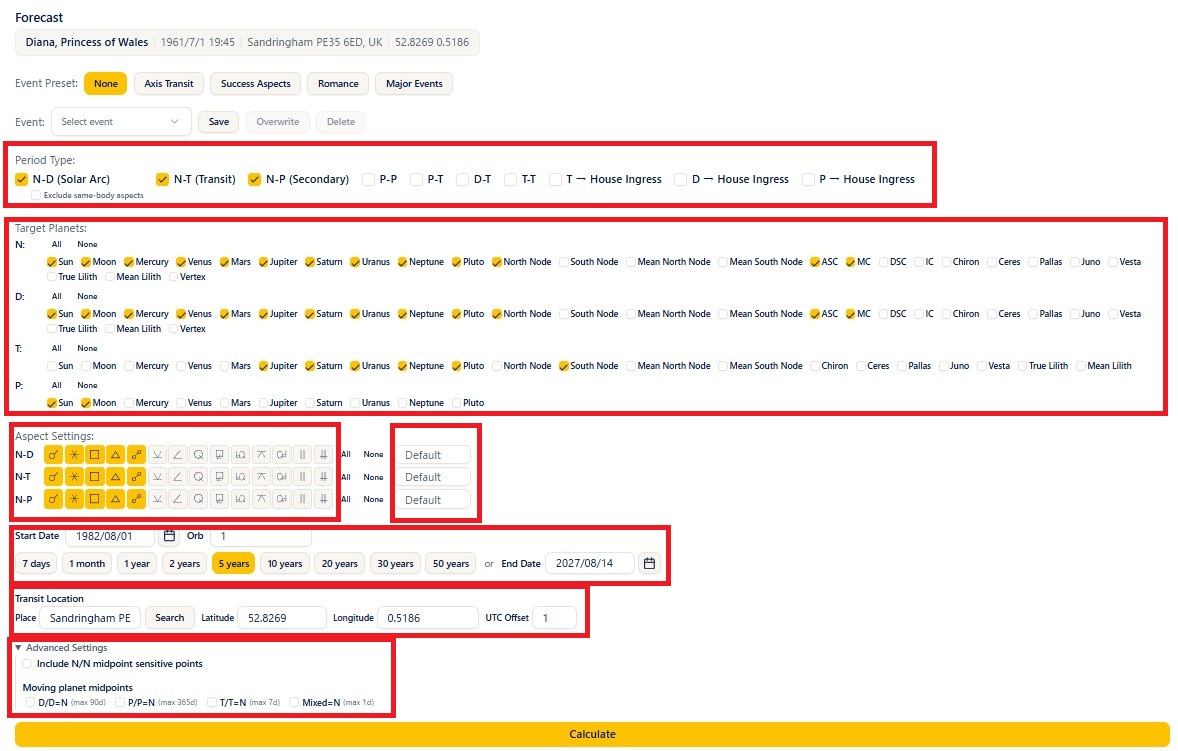
Steps
- Choose the Period Type (more than one can be selected). For example: N-D (Solar Arc) / N-T (Transit) / N-P (Secondary) / P-P / P-T / D-T / T-T / T → House Ingress.
- Choose the bodies you want under Target Planets (with All and None).
- Specify the aspect types you want and their orbs under Aspect Settings.
- Set the Start Date and the Transit Location (Search looks up the latitude and longitude from a place name). There is also an Orb field next to the start date.
- Opening Advanced Settings lets you include midpoint sensitive points and the midpoints of moving bodies.
- Press Calculate.
Notes
- There are two kinds of orb field.
- The field next to each row of Aspect Settings (N-D, N-T, N-P, and so on) is an individual orb that applies to that period type only.
- The Orb field next to the Start Date applies to every period type.
- When both are filled in, the individual orb wins. When both are empty, the calculation uses the standard orbs.
- When the transiting Moon is included, the period is limited to a maximum of one month.
- Including fast-moving bodies over a long period produces a great many rows, so a warning message is shown.
- For the basics of aspects, see also Aspects on the ARI official site (in Japanese).
Reading the results
Notes
- The columns of the Aspect Formation Periods list are Natal / Aspect / Activator / Start / End / Exact (the planets carry the prefixes N, D, T, and P).
- Clicking a date opens the tri-wheel for that day in a separate window.
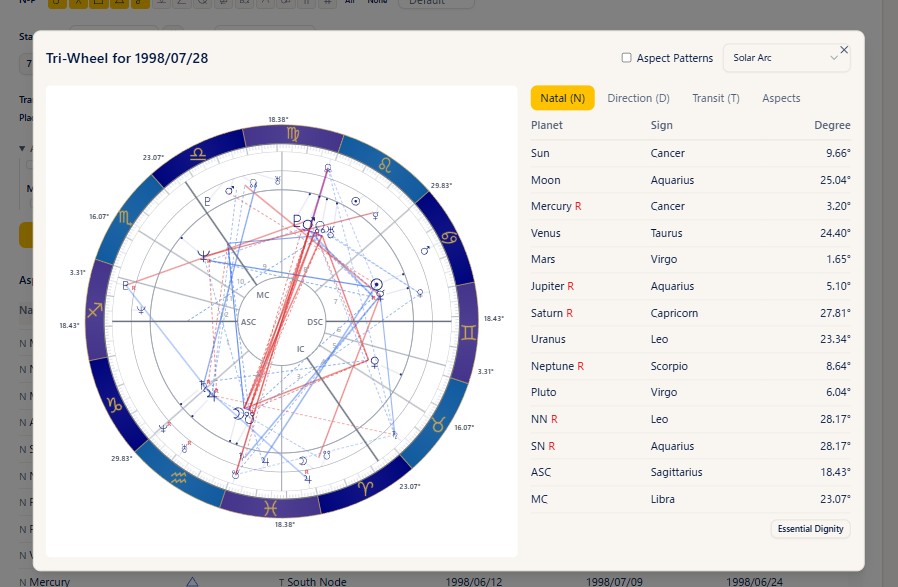
- The Print button prints the list.
Saving your conditions (events)
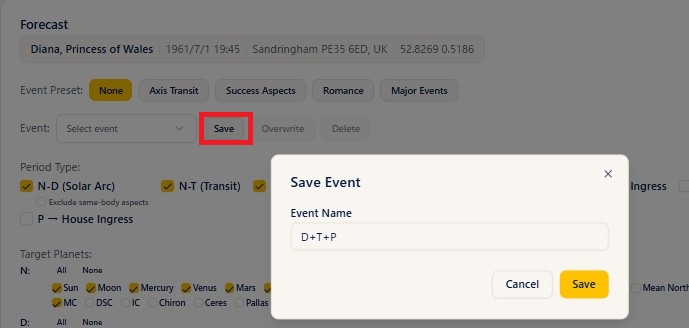
Steps
- Once you have assembled your conditions, press Save and register them under an Event Name.
- Recalling them from Select event restores the saved conditions.
- After correcting recalled conditions, press Overwrite; when you no longer need them, press Delete.
Time Map
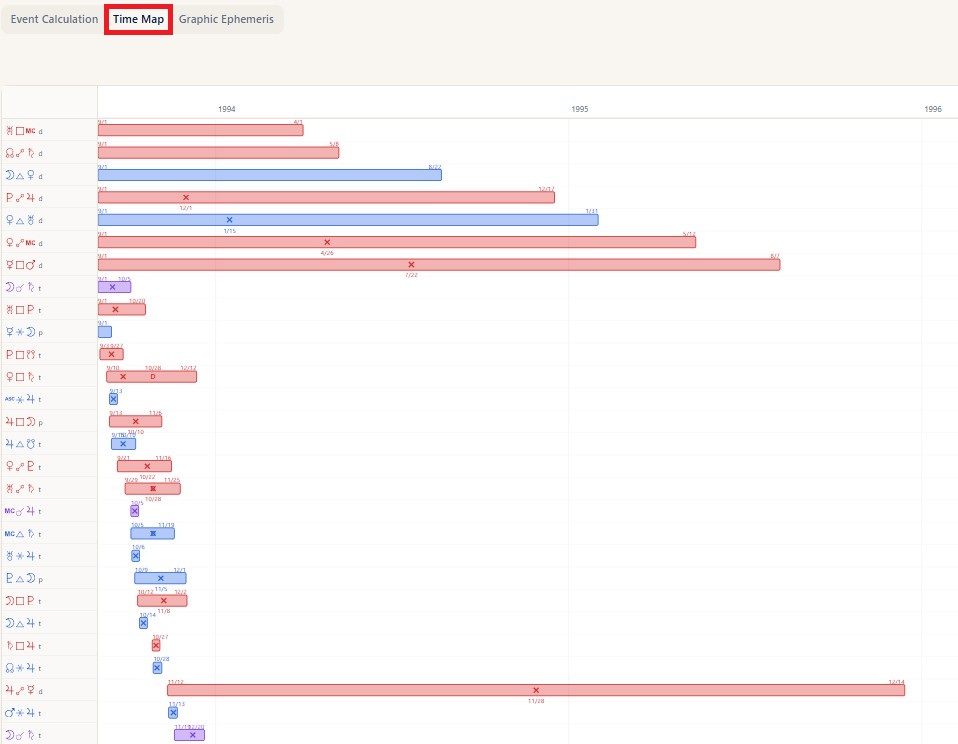
The Time Map is available on the Max plan.
Steps
- Run Event Calculation first.
- Open the Time Map tab and the results are laid out as horizontal bars (a Gantt chart) along a timeline.
- Print prints it (A4 landscape).
Notes
- House ingresses, such as "T → House Ingress", use arrows to show direct and retrograde motion.
Graphic Ephemeris
This tab plots the motion of the bodies on a graph with time along the horizontal axis. The Graphic Ephemeris is available on the Pro plan and above.
Steps
- Open the Graphic Ephemeris tab.
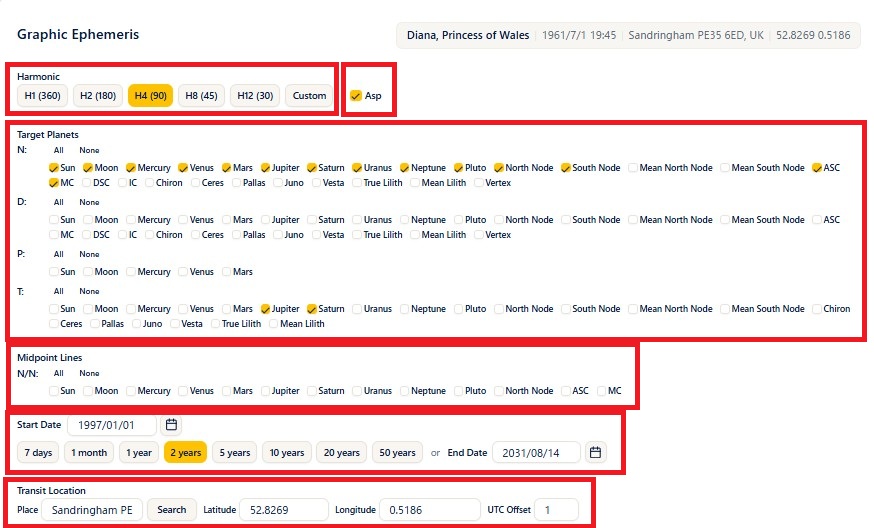
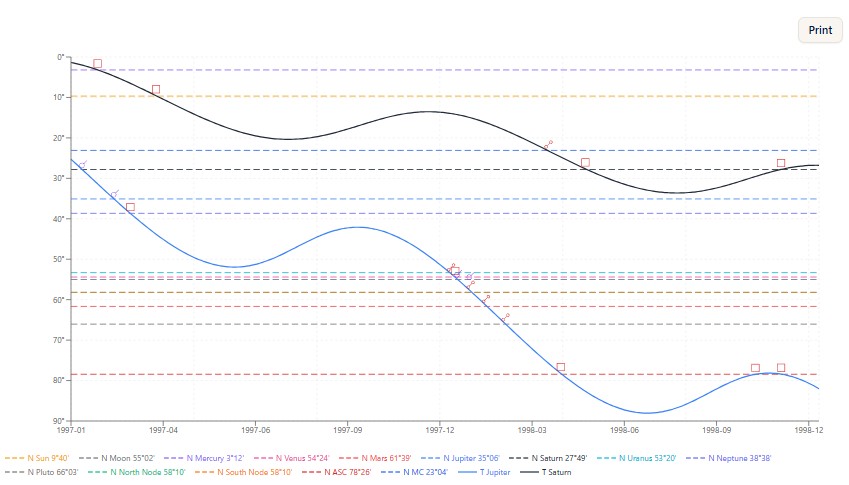
- Choose the Harmonic (H1(360) / H2(180) / H4(90) / H8(45) / H12(30) / Custom). With H4, for example, you can spot 90-degree and 180-degree aspects as places where the lines cross.
- Ticking Asp shows aspect markers on the graph.
- Choose the bodies for N (natal), D, P, and T under Target Planets.
- Choosing planets under Midpoint Lines adds the N/N midpoints to the graph as well.
- Set the Start Date and the period (or the end date), and the Transit Location.
- Press Draw and the graph appears.
Notes
- The natal (N) bodies are drawn as horizontal dotted lines and the moving bodies (T, D, P) as curves. Where the lines cross, the aspect corresponding to the harmonic you chose is formed.
- The Print button prints the graph on display.
Plans
The Forecast page as a whole = Plus and above. Time Map = Max and above / Graphic Ephemeris = Pro and above.