Ephemeris
About this chapter
This chapter covers the standalone Ephemeris page. Here you can generate and download an ephemeris for a period you specify as a PDF. The ephemeris is available on the Plus plan and above.
It is a different feature from the Ephemeris button introduced in the Progression chapter (which opens three months of ephemeris data in a dialog on the screen). This one is a standalone page that outputs a PDF file.
For the basics of retrograde motion, see also Direct and retrograde motion on the ARI official site (in Japanese).
Creating an ephemeris PDF
Steps
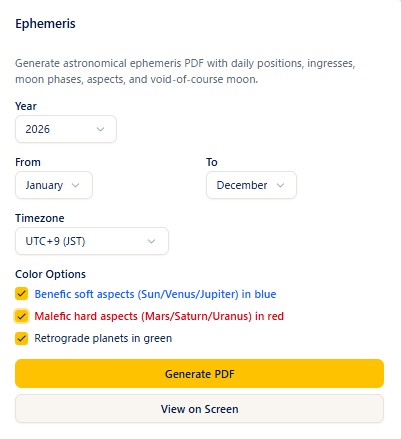
- Open Ephemeris from the menu.
- Choose the Year (from the list).
- Choose the From and To months. Choosing a To month earlier than the From month adjusts them automatically (and the same the other way around).
- Choose the Timezone (UTC+9 (JST) / UTC+0 (GMT) / UTC+1 (CET) / UTC-5 (EST) / UTC-8 (PST)). The default is UTC+9 (JST).
- Set the Color Options if you want to (see the next section).
- Press the Generate PDF button. While it runs, the button changes to Generating....
Notes
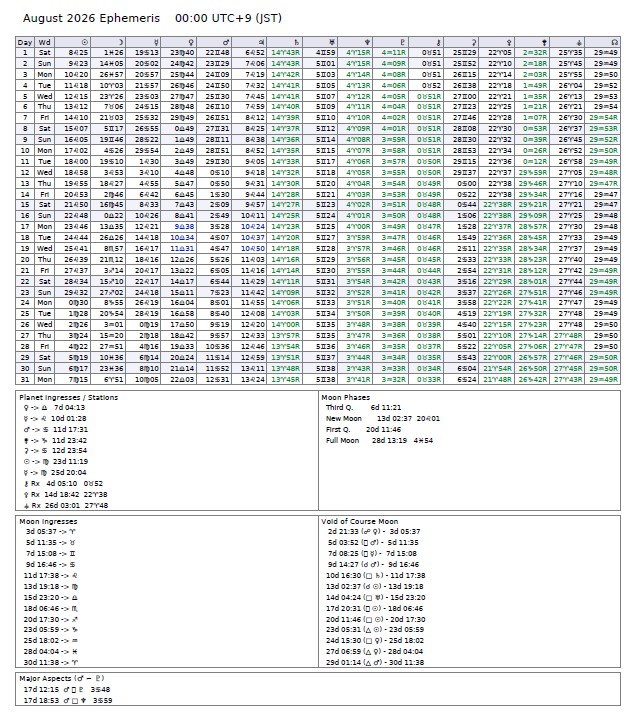
- The generated ephemeris is downloaded as a PDF file. It also opens in a new tab (it is not shown within the page).
- The PDF contains the daily positions of the bodies, ingresses, moon phases, aspects, the void-of-course Moon (VOC), and more.
- The longer the period, the longer generation takes. Specifying only the months you need makes it faster.
- Even if your browser's pop-up blocker prevents the new tab from opening, the download still happens.
Color options
Steps
- The checkboxes under Color Options switch the coloring inside the PDF.
- Set them and then press Generate PDF, and the output uses the coloring you specified.
Notes
- Benefic soft aspects (Sun/Venus/Jupiter) in blue: shows those aspects in blue (off by default).
- Malefic hard aspects (Mars/Saturn/Uranus) in red: shows those aspects in red (off by default).
- Retrograde planets in green: shows retrograde bodies in green (on by default).
Plans
The ephemeris is available on the Plus plan and above (a lock icon on the menu means your plan cannot open it).