Plan and Credits
About this chapter
This chapter covers checking, subscribing to, changing, and purchasing plans and credits. Some of it — subscribing, payment, buying credits, receipts — happens on your ARI account page (the official site).
Checking and subscribing to a plan
Steps
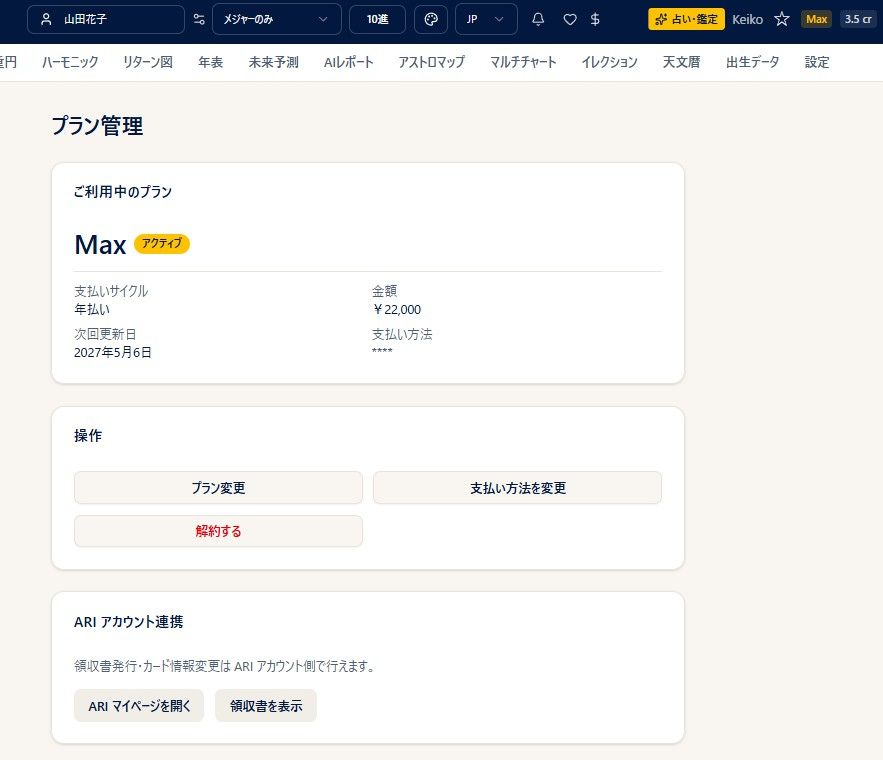
- Pressing the plan name button at the right of the header (Basic, for example) opens the Plan Management screen. On the free plan the button reads Subscribe, and when you are not logged in it reads Log in.
- Plan Management shows your current plan, billing cycle (monthly or yearly), amount, next billing date, and payment method.
- To subscribe for the first time, go to Subscribe, choose a plan and a monthly or yearly cycle, choose a payment method (saved card / new card / bank transfer [yearly only]), agree to the terms, and press the apply button.
Notes
- A 30-day free trial is available for new subscriptions to Basic on the monthly cycle only.
- Card payments are processed by Omise, and card numbers are not stored in StarNavigator.
- Logging in, registering, and the details of payment are handled on the ARI official site.
Pricing
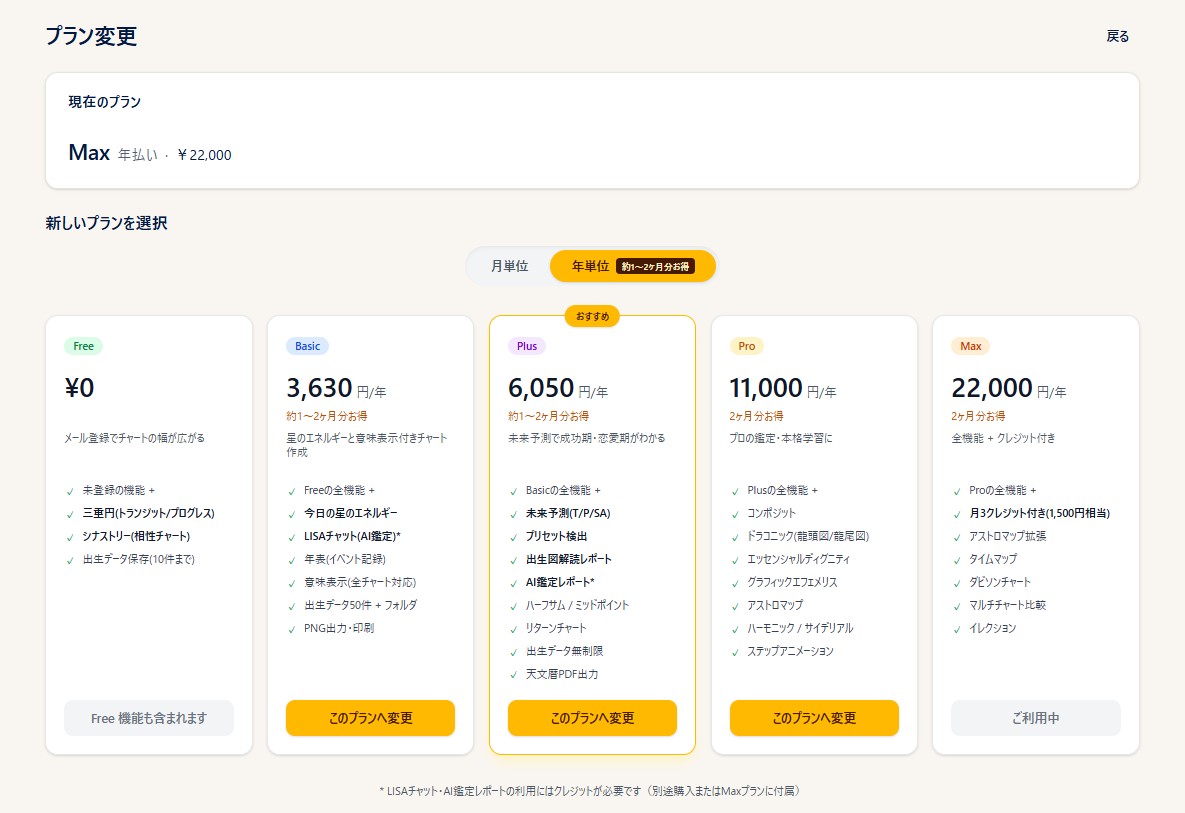
| Plan | Monthly (tax incl.) | Yearly (tax incl.) |
|---|---|---|
| Basic | JPY 330 | JPY 3,630 |
| Plus | JPY 550 | JPY 6,050 |
| Pro | JPY 1,100 | JPY 11,000 |
| Max | JPY 2,200 | JPY 22,000 |
- The yearly cycle is about one to two months cheaper than monthly. Bank transfer is available on the yearly cycle only.
- The Max plan includes 3 credits every month (worth JPY 1,500). For anyone using the AI features (LISA Chat, AI research reports, and so on) it is effectively better value than Pro.
- For what each plan can do (the feature details), see the pricing and feature comparison page. The plan comparison table on the subscribe and change screens shows it as well.
Changing and cancelling a plan
The Change Plan and Cancel Subscription buttons are in the Actions section of the Plan Management screen above. Pressing Change Plan opens the plan selection screen shown under "Pricing".
Steps
- Plan Management then Change Plan upgrades or downgrades your plan.
- Upgrade: takes effect immediately (you are charged the difference after the remaining period is deducted).
- Downgrade: your current plan continues to the end of the period and switches at the next renewal.
- Cancel Subscription schedules cancellation at the end of the period (there is no refund for cancelling mid-period).
- Once scheduled, Undo Cancellation and Undo Scheduled Change reverse it.
Notes
- Upgrading from yearly to monthly can forfeit part of your remaining balance, and a warning is shown.
- Within one month of cancelling, your data can be restored if you resume.
Credits

Steps
- The (n) cr button in the header shows your credit balance.
- Credits are purchased from that button (or from Purchase Credits in each feature), on your ARI account page (in a new tab).
Notes
- Credits are consumed by LISA Chat (AI readings), AI research reports, and generating the Forecast Calendar, among others.
- The Max plan includes 3 credits every month (worth JPY 1,500).
- Purchasing credits, issuing receipts, and changing card details are all handled on your ARI account page.